Direct answer: Use a Gmail Trigger with a narrow search rule, retrieve the message with its attachments, reject files that fail your type or size rules, then upload each allowed binary item with the Google Drive node. Add a processed Gmail label only after every intended upload succeeds so a retry does not silently skip an incomplete message.
Partner disclosure. This guide includes a partner link to n8n Cloud. If you sign up through it, I may earn a commission at no extra cost to you.
What this workflow does
This pattern moves attachments from a defined Gmail queue into one Google Drive folder. It keeps the original Gmail message ID in the filename or log so the stored file can be traced back to its source.
It does not scan arbitrary inbox mail, decide whether a file is safe, extract document contents, or guarantee that two different messages cannot contain the same file. Those jobs need separate validation rules.
Workflow map
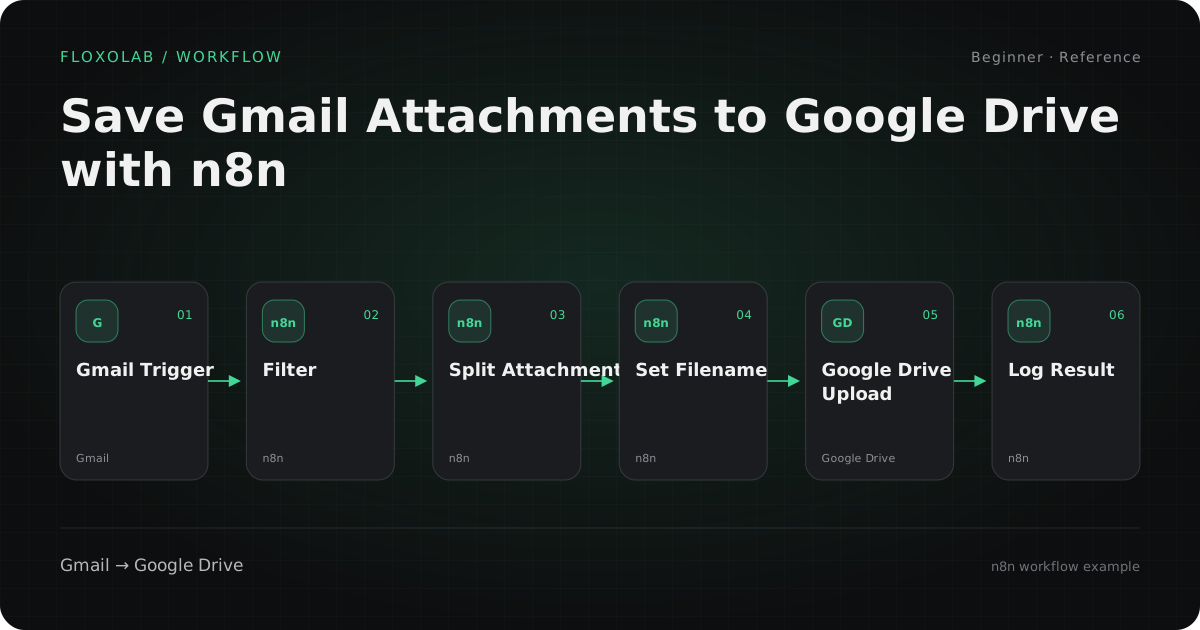
Apps and nodes
Gmail Trigger
Poll for new messages that match a Gmail search or label rule.
Configure: Use a narrow rule such as a dedicated label plus has:attachment. Exclude the processed label.
Gmail: Get Message
Retrieve the full message and make attachment binary data available to later nodes.
Configure: Pass the trigger message ID and enable attachment download in the message-retrieval step.
Attachment preparation
Turn each binary attachment into one item with a safe filename and source metadata.
Configure: Keep message ID, original filename, MIME type, and byte size. Replace unsafe path characters.
IF
Reject files outside the allowed type or size policy.
Configure: Route rejected files to a log; do not upload them or mark the message complete.
Google Drive: Upload
Write each allowed binary item to the selected folder.
Configure: Use the prepared filename and an explicit folder ID rather than a user-entered path.
Gmail: Add Label
Mark the source message after its attachment uploads finish.
Configure: Apply the processed label at the end, not immediately after the trigger.
Step-by-step logic
01. Create the inbox boundary
Make a Gmail label for the queue and a second label for completed messages. The trigger should require the queue label and an attachment, then exclude the completed label.
02. Retrieve the complete message
Use the trigger message ID in a Gmail message retrieval step. Keep the raw message ID even if you simplify the other fields because it is the stable trace back to Gmail.
03. Create one item per attachment
Convert the attachment binary properties into separate items. Carry the original filename, MIME type, size, message ID, and received date with every item.
04. Apply a file policy
Allow only the extensions and sizes the destination process expects. Send rejected attachments to a visible log rather than dropping them.
05. Build a deterministic filename
Combine a normalized received date, the Gmail message ID, and a cleaned original filename. That makes retries visible and gives you a stable key for duplicate checks.
06. Upload and close the loop
Upload each binary item to an explicit Drive folder. Only when the intended uploads succeed should the workflow add the completed Gmail label.
Configuration examples
These examples use placeholders. Map them to the fields and credentials in your own n8n account.
Gmail search rule
label:n8n-drive has:attachment -label:n8n-drive-saved
Use labels you control. Add sender or subject filters when the queue should be narrower.
Filename pattern
{{received_date}}__{{gmail_message_id}}__{{safe_original_name}}
Treat this as pseudocode and map it to the actual fields returned by your Gmail step.
Allowed file policy
pdf, csv, xlsx; maximum size set by your own process
Do not copy a generic size limit. Choose one that matches your Drive, n8n, and downstream constraints.
Common problems
The trigger fires but no file reaches Drive
Likely cause: The trigger returned message metadata but the later Gmail step did not retrieve attachment binary data.
Fix: Inspect the Gmail retrieval output and confirm that the binary attachment property is present before the upload node.
A retry creates a second copy
Likely cause: The filename changes between runs or the workflow marks the message before all uploads finish.
Fix: Use a deterministic filename or Drive lookup key, and add the processed label only after the upload branch completes.
Google Drive reports missing binary data
Likely cause: The upload node points at a binary property name that no longer exists after the split step.
Fix: Inspect one item immediately before upload and map the exact binary field name.
One bad attachment stops the entire message
Likely cause: The workflow has no reject branch for type, size, or filename errors.
Fix: Separate rejected files, log the reason, and decide whether the source message should remain unprocessed for review.
Ways to extend it
- Write an upload ledger to Google Sheets with message ID, Drive file ID, filename, and result.
- Route invoices, reports, and images to separate Drive folders using deterministic rules.
- Add a Drive lookup before upload when filename-based idempotency is required.
- Notify Slack only for rejected files or incomplete messages instead of every successful upload.
Limits of this reference
- This is a reference architecture, not an imported or end-to-end tested FloxoLab workflow.
- A Gmail label prevents repeat handling of the same message; it does not prove that file contents are unique.
- Attachment malware scanning, retention policy, and access permissions remain separate operational decisions.
Official sources
n8n partner link
Build this workflow in n8n Cloud
Affiliate disclosure: I may earn a commission if you sign up through this link, at no extra cost to you.