Direct answer: Use the Gmail Trigger to collect a narrow inbox queue, prepare only the sender, subject, and relevant body text, then pass that text to n8n's Text Classifier with named categories and descriptions. Connect each category output to Gmail's Add Label operation and route the Other or error output to a manual-review label. Do not let free-form model text choose arbitrary labels.
Partner disclosure. This guide includes a partner link to n8n Cloud. If you sign up through it, I may earn a commission at no extra cost to you.
What this workflow does
This workflow sorts an incoming message into one bounded operational category such as support, sales, billing, or other, then applies the matching Gmail label. The label becomes a visible queue for a person or a later deterministic workflow.
It does not send a reply, infer urgency with guaranteed accuracy, or replace the broader email-routing and human-approval designs already documented by FloxoLab.
Workflow map
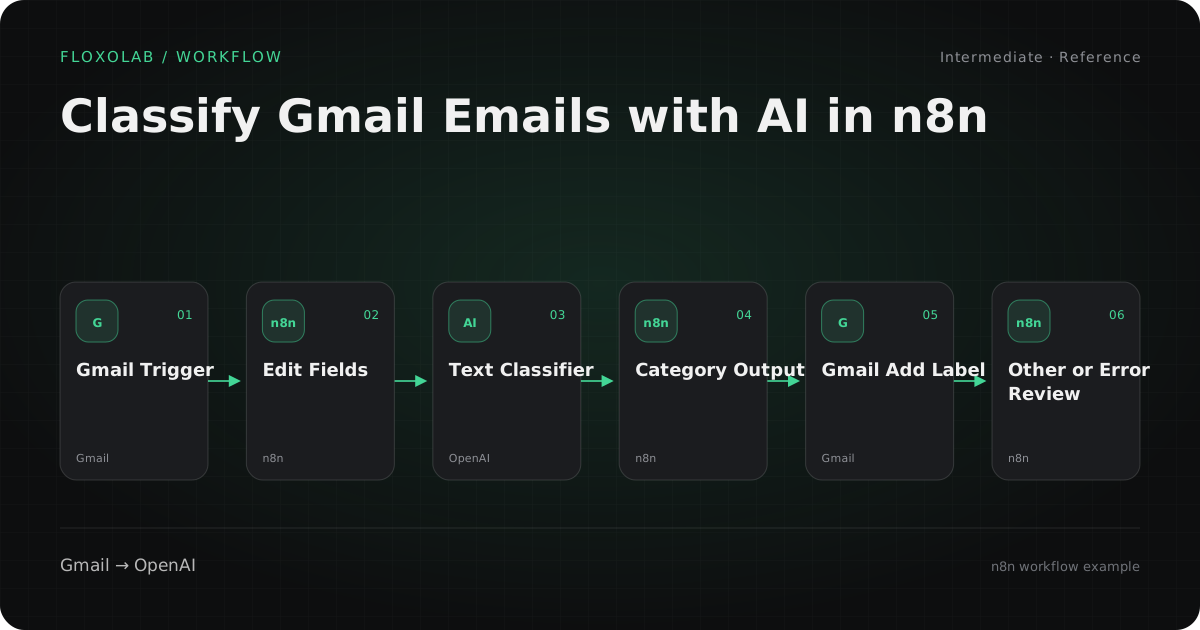
Apps and nodes
Gmail Trigger
Collect only new messages in the inbox queue that needs classification.
Configure: Use a dedicated label or Gmail search rule and exclude already-classified labels.
Edit Fields
Create one compact classification input from selected message fields.
Configure: Include sender, subject, and the useful body text. Exclude signatures, quoted history, and attachments unless the task requires them.
Text Classifier
Route each item to one named category output or the Other branch.
Configure: Write a description for each category, keep multiple classes off unless the business process truly permits them, and keep an Other branch.
Chat Model
Provide the language model used by the Text Classifier.
Configure: Choose a model and credential explicitly; measure cost and failure behavior before increasing volume.
Gmail: Add Label
Apply the operational label associated with the classifier output.
Configure: Use the original Gmail message ID and a fixed label name or ID for each branch.
Review branch
Keep unclear or failed messages visible to a person.
Configure: Apply a review label and log the raw category/error without auto-sending anything.
Step-by-step logic
01. Define categories before opening n8n
Write a short list of mutually understandable categories and give each one a positive definition plus an exclusion. If two categories routinely overlap, fix the business rule before prompting the model.
02. Create a narrow Gmail queue
Trigger only on messages that need classification. Exclude spam, sent mail, and any labels used to mark completed or reviewed messages.
03. Prepare the model input
Build a compact text field from sender, subject, and the current message body. Remove quoted threads and standard signatures when they add noise or personal data that the model does not need.
04. Configure the Text Classifier
Add the fixed category names and descriptions. Keep the Other branch available so an unclear message can fail safely instead of being forced into the nearest label.
05. Map outputs to Gmail labels
Connect each classifier output to a separate Gmail Add Label operation. Do not turn model text directly into a dynamic label name.
06. Handle failures and review
Send Other, provider errors, and missing-body cases to one review label. Log the message ID and reason so the workflow can be evaluated without exposing full email content in a broad log.
Configuration examples
These examples use placeholders. Map them to the fields and credentials in your own n8n account.
Classifier input
From: {{from}}
Subject: {{subject}}
Message: {{clean_body}}
These are placeholder field names. Map them to the actual Gmail output in your workflow.
Allowed categories
support | sales | billing | other
Use names that match real queues. Keep the list small enough that a reviewer can explain the difference.
Support description
Existing customer needs help using or fixing a product. Excludes pricing requests, invoices, refunds, and new-business enquiries.
Descriptions should include both the positive rule and the closest exclusion.
Review rule
Other output, missing body, model error, or invalid category -> gmail label: ai-review
The fallback stays visible and never sends a reply.
Common problems
Almost every message goes to one category
Likely cause: The category descriptions overlap or the dominant category is written more broadly than the others.
Fix: Rewrite categories with explicit exclusions and test a small labeled sample before using live volume.
Quoted thread text changes the result
Likely cause: The classifier sees older messages, signatures, and forwarding headers instead of the current request.
Fix: Extract the current message body or truncate quoted history before classification.
A label is missing or applied to the wrong email
Likely cause: The branch uses model output as a label or loses the original Gmail message ID.
Fix: Keep one fixed Add Label node per branch and pass the trigger message ID through every step.
Provider errors stop the workflow
Likely cause: The classifier has no error path or retry boundary.
Fix: Route errors to review, add bounded retries only for transient failures, and avoid treating a retry as a second independent classification.
Ways to extend it
- Add a confidence review policy based on a separate evaluation step, not a fabricated model certainty score.
- Write category counts and review rates to a small measurement sheet before estimating production cost.
- Add a human approval workflow later if a category will trigger an external action.
- Split one broad category only after the review queue proves that a distinct operational job exists.
Limits of this reference
- This is a reference architecture and was not tested end to end by FloxoLab.
- The classifier can be wrong even when its output matches an allowed category.
- Email content may contain personal or confidential data; minimize what is sent to the model and review the provider and account settings separately.
Official sources
n8n partner link
Build this workflow in n8n Cloud
Affiliate disclosure: I may earn a commission if you sign up through this link, at no extra cost to you.